
0 views
Most WordPress PHP errors are not emergencies. On WP Aligned hosting, PHP writes every warning and notice to a file called error_log instead of showing it to visitors, so a site can log hundreds of entries and still load normally. This guide shows where that file lives, how to group what’s in it, and how to tell a PHP Deprecated notice (works today, needs a plugin update) from an error that needs a fix now.
If you received a notice from us that a site “is logging PHP errors,” this is the same process we use to trace them.
What WordPress PHP errors mean: the common types
Every line in error_log starts with a timestamp and a level. The level tells you how worried to be.
| Level | What it means | Does the visitor see a problem? |
|---|---|---|
PHP Deprecated |
The code uses something PHP plans to remove in a future version. It still works on the version the site runs today. | No |
PHP Notice |
Minor issue, usually sloppy code. | No |
PHP Warning |
Something went wrong, but PHP kept going. A feature may be silently broken. | Sometimes |
PHP Fatal error |
PHP stopped. The page (or the admin action) failed. | Yes |
PHP Parse error |
The file has a syntax error and could not run at all. | Yes |
A typical deprecated line looks like this:
[30-Oct-2026 09:50:12 UTC] PHP Deprecated: Creation of dynamic property Example_Widget::$settings is deprecated in /home/exampleuser/public_html/wp-content/plugins/example-widget/widget.php on line 42
Read it right to left: the file path tells you which plugin or theme owns the code (example-widget), and the message tells you what PHP is complaining about.
Why “deprecated” means “works today, needs a plugin update”
A deprecation notice is PHP giving plugin authors advance warning. The code runs correctly on the PHP version the site uses now, but the feature it relies on is scheduled to be removed. When PHP does remove it, that same line becomes a warning or a fatal error.
So a deprecated notice is not a reason to roll back or panic. It is a to-do item for whoever maintains the plugin. The fix is almost always one of these:
- Update the plugin or theme to a version that supports the PHP version you run.
- If no update exists, ask the vendor for a compatible build.
- If the plugin is abandoned, plan to replace it before the next PHP upgrade.
Each PHP release deprecates different things, which is why a PHP upgrade often brings a new wave of notices from older plugins:
| PHP version | Common new deprecations you’ll see from older plugins |
|---|---|
| 8.1 | Passing null to parameter #1 ($string) of type string is deprecated |
| 8.2 | Creation of dynamic property ... is deprecated |
| 8.4 | Implicitly marking parameter $example as nullable is deprecated, the explicit nullable type must be used instead |
If you are moving from PHP 7.4 to any 8.x version, expect more than notices. PHP 8.0 turned many old warnings into fatal errors, so test on a staging copy first. See How to change the PHP version per domain or subdomain in cPanel.
Where error_log lives on WP Aligned hosting
On our servers, PHP is set to log errors and never display them (log_errors = On, display_errors = Off). With that setup, PHP writes a file named error_log in the directory of the script that ran. For a WordPress site that usually means two files:
| File | What lands there |
|---|---|
public_html/error_log |
Front-end page loads, and most plugin and theme code |
public_html/wp-admin/error_log |
Requests made inside wp-admin |
For an addon domain or subdomain, look in that domain’s document root instead of public_html. You may also find error_log files in other folders if a plugin runs its own PHP files directly.
If you can’t find an error_log file, check whether the account sets its own log path. In cPanel, open Software > MultiPHP INI Editor, switch to Editor Mode, pick the domain and look for an error_log = line. If one is there, PHP writes every entry to that single file (often under logs/ in the account’s home folder) instead.
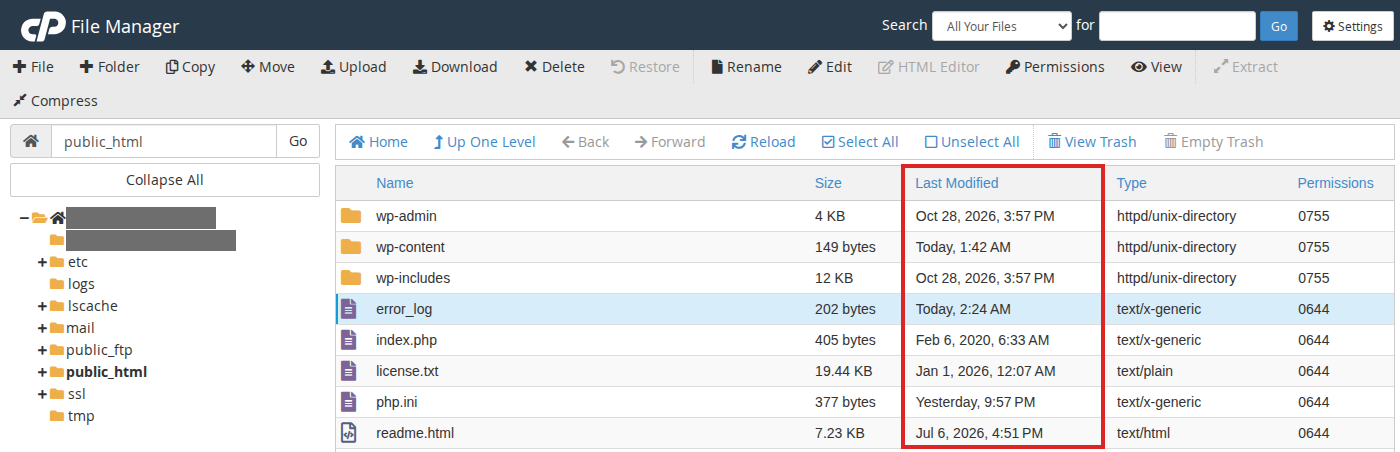
Check the file’s last-modified date before you read it. An error_log that hasn’t been written to in months is history, not a current problem.
Open it in cPanel File Manager
- Log in to cPanel and open Files > File Manager.
- Open
public_html(or the domain’s document root). - Right-click
error_logand choose View, or Download it if the file is large.
Read it from the command line
If you have SSH access to the account, these commands do the grouping for you. Run them from the site’s document root.
Show the 50 newest entries:
tail -n 50 error_log
Count entries by level:
grep -oE 'PHP (Fatal error|Parse error|Warning|Notice|Deprecated)' error_log | sort | uniq -c | sort -rn
Count entries by plugin or theme, which is usually the most useful view:
grep -oE 'wp-content/(plugins|themes)/[^/]+' error_log | sort | uniq -c | sort -rn
Show the distinct messages for one plugin, with how often each appears:
grep 'plugins/example-widget/' error_log | sed -E 's/^\[[^]]*\] //' | sort | uniq -c | sort -rn | head -20
The plugin count usually tells the story. Often one or two plugins produce most of the entries.
How to work through the list
Group first, then decide per plugin:
- Fatal and parse errors: fix these first. Something on the site is failing. Note the time, the URL if it’s in the line, and the file path.
- Warnings that repeat many times a day: these usually point to a broken feature. A common example is a widget that calls an outside service (weather, maps, social feeds), gets an error back, and then logs
Attempt to read property "..." on nullon every page load. Check the plugin’s settings and API key, or replace the plugin. - Deprecated notices: update the plugin. If there is no update, record it so the plugin gets replaced before the site’s next PHP upgrade.
- One-off entries from months ago: ignore them. A single
PHP Fatal error: Uncaught Error: Undefined constant "ABSPATH"inwp-settings.php, for example, is almost always a bot requesting that file directly. It doesn’t affect visitors.
A note on memory errors: a line like Allowed memory size of 134217728 bytes exhausted reports the PHP memory limit that was in effect for that request (134217728 bytes is 128 MB). Our default PHP memory limit is 2048 MB. If the number in the error is lower than that, something set a lower limit for that request. Send us the line and we’ll trace it.
Verify the fix worked
After you update or replace a plugin, start a clean log so you can see whether the errors come back:
- Download a copy of
error_logif you want to keep it. - Empty the file. In File Manager, delete it (PHP creates a new one on the next error). Over SSH:
- “`bash
-
error_log
“`
- Load the pages that used the plugin, and check the file again over the next day or two.
If the plugin’s entries don’t return, you’re done.
Turning on WP_DEBUG for a short test
You don’t need WP_DEBUG to see PHP errors on our hosting, since error_log already captures them. Turn it on only when you need WordPress-specific notices too, and only briefly. Never display errors on a live site.
Add this to wp-config.php above the line that says /* That's all, stop editing! */:
define( 'WP_DEBUG', true );
define( 'WP_DEBUG_LOG', true );
define( 'WP_DEBUG_DISPLAY', false );
@ini_set( 'display_errors', 0 );
WordPress then writes to wp-content/debug.log. That file can be downloaded by anyone who guesses the URL, so set WP_DEBUG back to false and delete debug.log when you’re finished.
Prevent the next wave
- Keep plugins and themes updated, and remove plugins the site no longer uses.
- Before you change a site’s PHP version, switch a staging copy first and read its
error_log. The new deprecations show up there before they reach production. - Treat plugins that haven’t been updated in a year or more as candidates for replacement.
- Check
error_logsizes now and then. A file growing by megabytes a day means something is failing on every request.
When to contact us
Open a ticket if any of these are true:
PHP Fatal errorentries keep appearing and you can’t tie them to a plugin or theme.- Errors started right after a PHP version change, and switching back didn’t stop them.
- Memory-exhausted errors show a limit lower than 2048 MB, or show 2048 MB being exhausted.
- The errors point to WordPress core files (
wp-includesorwp-admin) rather than a plugin or theme.
Include the domain, a few sample lines from error_log, and what changed recently. See Need Help? for how to reach us.
FAQ
Do PHP deprecated warnings slow down my WordPress site?
Each logged entry costs a small amount of work, so a plugin that logs on every page load adds overhead and fills the disk over time. One or two notices a day make no measurable difference. Thousands a day are worth fixing.
Should I hide PHP warnings instead of fixing them?
No. On our hosting they’re already hidden from visitors. The log is how you find out a plugin will break on the next PHP version, so suppressing it only removes the warning.
Why do I see errors from a plugin I already deleted?
error_log keeps old entries until the file is emptied. Check the timestamps. If the newest entry for that plugin predates the deletion, it’s history.
Will switching back to an older PHP version make the errors go away?
It can make deprecation notices go away, but it doesn’t fix anything. The plugin still needs an update, and older PHP versions stop receiving security fixes. Fix the plugin instead.