
6 views
To clear LiteSpeed cache on WP Aligned hosting, purge it from the LiteSpeed Cache plugin in wp-admin. That purge is the server cache purge. Our servers run LiteSpeed Enterprise, and its page cache (LSCache) is controlled entirely by the plugin, so there is no separate server cache tool to look for in cPanel, and nothing else on our side caches pages by default.
How caching works on WP Aligned hosting
There are up to three layers to think about. Only the first one is on by default.
| Layer | What it stores | On by default? | How to clear it |
|---|---|---|---|
| LiteSpeed page cache (LSCache) | Full HTML pages, served by the web server | Yes, through the LiteSpeed Cache plugin | Purge in the LiteSpeed Cache plugin |
| Redis object cache | Database query results | No. You turn it on in cPanel and configure it in the plugin | See Redis Object Caching |
| Anything in front of the server (Cloudflare, QUIC.cloud CDN) | Copies of pages and files at the edge | Only if you set it up | Purge in that service |
If you searched cPanel for a LiteSpeed cache tool and only found the Redis manager, that’s expected. The Redis manager is for the optional object cache. Leave it alone unless you’re setting up Redis on purpose.
Clear LiteSpeed cache from wp-admin
The fastest way is the admin bar:
- Log in to wp-admin.
- Hover over the LiteSpeed icon in the admin bar at the top of the screen.
- Click Purge All.
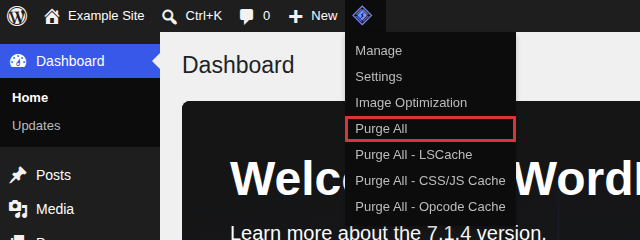
You can also purge from the plugin’s Toolbox:
- Go to LiteSpeed Cache > Toolbox.
- Stay on the [1] Purge tab.
- Click Purge All.
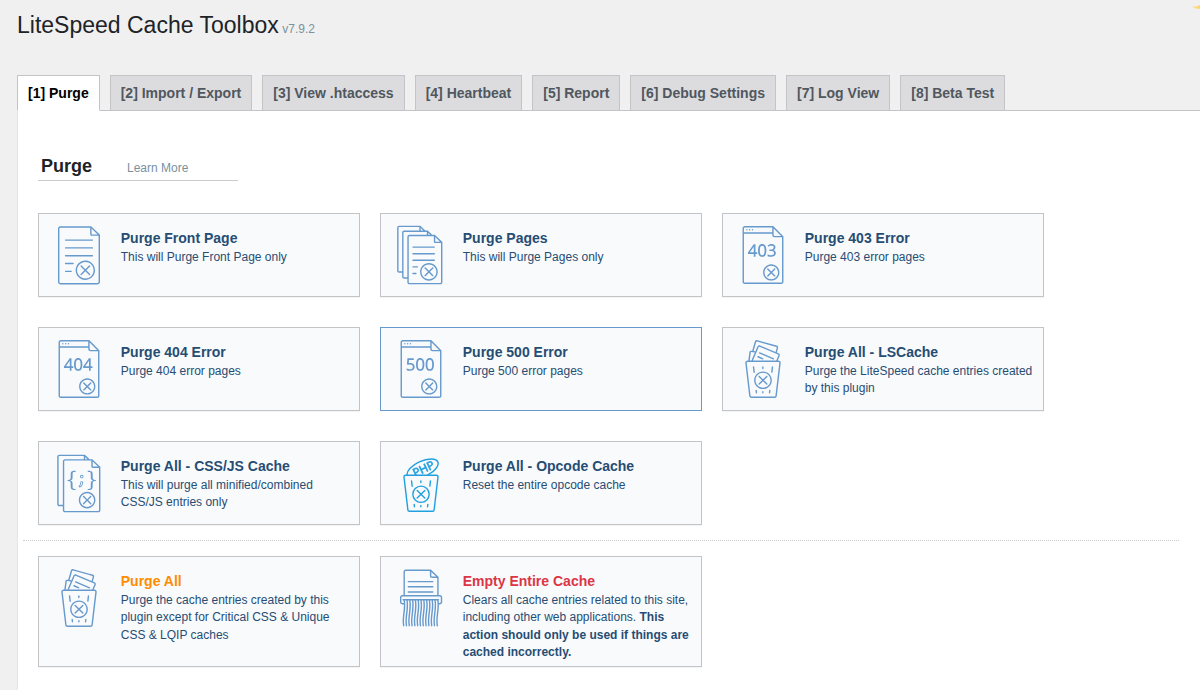
What the main options do:
- Purge All: clears every page this plugin cached, except Critical CSS, Unique CSS and LQIP placeholder images. Use this one for “visitors see old content.”
- Purge All – LSCache: clears only the cached pages.
- Purge All – CSS/JS Cache: clears minified and combined CSS and JavaScript. Use it when a style or script change isn’t showing up.
- Empty Entire Cache: clears all cache entries related to the site, including other web applications. Use it only when something is cached incorrectly and a normal Purge All didn’t help.
Purge a single page or URL
If one page is stale, you don’t need to clear the whole site:
- Go to LiteSpeed Cache > Toolbox > [1] Purge.
- Under Purge By…, click URL.
- Paste the full URL, one per line.
- Click Purge List.
The same section can purge by category, tag, or post ID.
Purge with WP-CLI
If you have SSH access, the plugin includes WP-CLI commands. Run them from the site’s document root.
Purge everything:
wp litespeed-purge all
Purge one URL:
wp litespeed-purge url https://example.com/pricing/
Purge specific posts or pages by ID:
wp litespeed-purge post_id 12 34
These are useful in deploy scripts, so the cache is cleared every time you push changes.
Verify the purge worked
Don’t judge from your normal browser window. Your browser, and any tool that fetched the page earlier, may be showing its own saved copy.
- Open the page in a private or incognito window.
- Check the cache header from the command line:
bash

   curl -sI https://example.com/ | grep -i x-litespeed-cache
The first request after a purge should show x-litespeed-cache: miss, meaning the page was built fresh. The next request should show hit, meaning it’s now served from the new cached copy.
- If you’re logged in to wp-admin, test logged out. By default, logged-in users don’t get cached pages, so what you see while logged in isn’t what visitors see.
Still seeing old content after a purge
Work through these in order:
- Other tools keep their own copies. Browser caches, SEO crawlers, page-preview tools and AI assistants that “check the live site” often fetch a page once and keep showing that copy. If the page is correct in a private window and in
curl, visitors are seeing the new version. - A CDN in front of the site. If the site uses Cloudflare or QUIC.cloud CDN, purge there too. LSCache can’t clear a copy stored by another service.
- Page builder CSS. Builders such as Elementor and Beaver Builder generate their own CSS files. Regenerate them in the builder’s tools (for Elementor, Elementor > Tools > Regenerate CSS & Data; for Beaver Builder, its cache-clearing tool), then purge LiteSpeed again.
- Another caching or optimization plugin. Run only one page caching plugin. Two page caches fight each other and leave stale pages behind.
Prevent stale pages
- Let the plugin purge automatically. By default, LiteSpeed Cache purges the related pages when you publish or update content. Avoid turning those purge rules off.
- After a theme, page builder, or plugin update that changes layout, run Purge All once.
- On staging and development sites, consider turning caching off while you’re actively building, and on again before launch. See How to create Development Sites.
When to contact us
Open a ticket if:
curlstill showsx-litespeed-cache: hitwith old content right after a Purge All.- The LiteSpeed Cache plugin reports that it can’t detect a LiteSpeed server.
- You need caching rules we’d have to change on the server.
Include the URL, the time you purged, and the curl output. See Need Help? for how to reach us.
FAQ
Is there a LiteSpeed cache tool in cPanel?
Not one you need. On our hosting the LiteSpeed Cache plugin is the control panel for the server cache. Purging there clears the server cache for that site.
Do I need to clear Redis too?
Only if you turned Redis on. It’s off by default. If you did enable it, see Redis Object Caching.
Will purging the cache slow the site down?
Briefly. The first visit to each page after a purge builds it fresh, which is slower. After that, pages are cached again.