
1 view
A WordPress white screen or a site that’s suddenly down isn’t always a WordPress problem. Before you restore a backup, deactivate plugins, or switch themes, spend five minutes on two checks outside WordPress: is the domain still registered, and does its DNS point at the right server? If either one is wrong, nothing you change inside WordPress will fix the site, and a restore just costs you time.
We’ve seen agencies spend hours on restores and plugin testing when the cause was an expired domain in one case and a DNS record edited in the wrong place in another.
WordPress white screen symptoms that point to domain or DNS
Suspect the domain or DNS first when you see any of these:
- A plain white page, but nothing new in the site’s
error_log. - A registrar’s “this domain has expired” or parking page, especially on
http://. - A browser warning such as
Your connection is not privateorNET::ERR_CERT_COMMON_NAME_INVALIDon a site that had a valid certificate yesterday. This site can't be reachedorDNS_PROBE_FINISHED_NXDOMAIN.- A Cloudflare error page, such as
Error 522: Connection timed out. - The site loads for you but not for the client, or the other way around.
- The site loads, but styles, scripts, or images are broken, and nothing changed in WordPress.
- Restoring a known good backup changes nothing.
That last point is the strongest signal. If a restore from before the problem started doesn’t help, the problem probably isn’t in the site’s files or database.
Step 1: Check whether the domain has expired
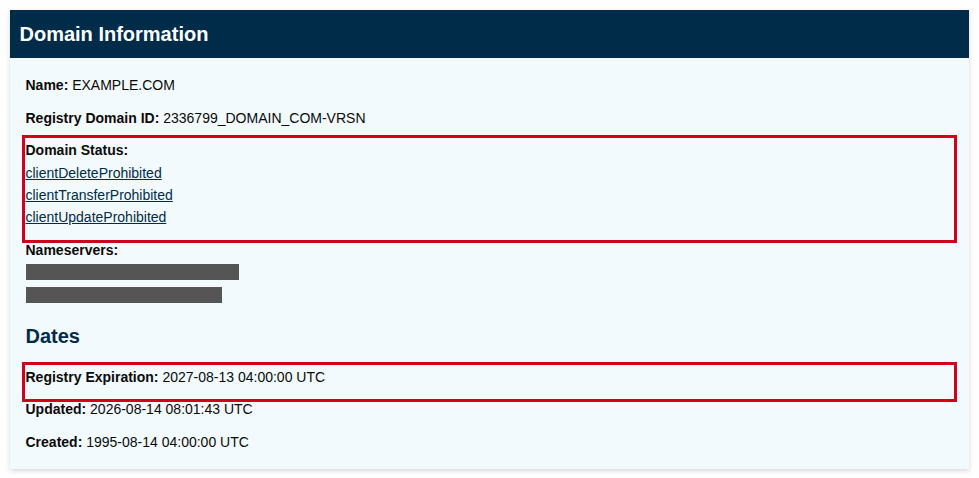
- Look up the domain on a WHOIS or RDAP service, such as ICANN Lookup or DomainTools WHOIS.
- Read the expiration date and the Domain Status. ICANN Lookup shows the date as Registry Expiration under Dates. Other WHOIS tools may call it “Expiration Date” or “Registry Expiry Date”.
- Open the site in a private or incognito window using
http://instead ofhttps://.
Why the private window and http://: when a domain expires, the registrar usually points it at its own parking page. That page often has no valid certificate for your domain, so https:// fails or shows a blank page. Your normal browser also remembers that the site used https:// and keeps trying it. A fresh private window on http:// is the quickest way to see what the registrar is actually serving.
If the domain has expired, the fix is renewal at the registrar. Whoever owns the registrar account (often the client) has to do it. Once renewed, the site usually comes back within minutes to a few hours, depending on the registrar.
Step 2: Find out where the DNS is actually hosted
The domain’s nameservers decide which DNS records are live. Records anywhere else are ignored.
Check the nameservers:
dig NS example.com +short
On Windows:
nslookup -type=NS example.com
If the answers end in ns.cloudflare.com, the live records are in Cloudflare. If they belong to the registrar, the live records are in the registrar’s DNS panel.
This is the most common trap. A client changes the A record at their registrar, but the nameservers point to Cloudflare. The registrar shows the new IP address, everything looks right in the screenshot they send you, and the site still points at the old server. When a client sends a “DNS screenshot,” check which dashboard it came from before trusting it.
Step 3: Check the A record against your server
Look up what the domain resolves to:
dig A example.com +short
dig A www.example.com +short
Compare the result with the server IP for the hosting account. In cPanel it’s shown as Shared IP Address in the General Information panel. If you can’t find it, ask us.
If the domain is proxied through Cloudflare (orange cloud), dig returns Cloudflare’s addresses, not your server’s. In that case you have to look at the records in the Cloudflare dashboard under DNS > Records. You need access to that Cloudflare account, which is often the client’s, not yours.
If the A record points at an old server, update it where the DNS is actually hosted (Step 2). With a short TTL, the change usually takes effect within minutes.
Step 4: Test the server directly, bypassing DNS
You can confirm the site works on our server before DNS is fixed. Either method tells your computer to skip DNS and go straight to the server IP. Replace 203.0.113.10 with your server’s IP address.
With curl:
curl -sI --resolve example.com:443:203.0.113.10 https://example.com/
A 200, 301 or 302 status means the server is serving the site.
With your hosts file, so you can browse the site normally:
203.0.113.10 example.com www.example.com
- macOS and Linux:
/etc/hosts(edit withsudo) - Windows:
C:\Windows\System32\drivers\etc\hosts(edit as Administrator)
Remove the line when you’re done, or you’ll keep seeing the server directly and miss later DNS problems.
If you’d rather not edit your hosts file, use our Preview Links system instead (link coming soon).
If the site loads correctly through the bypass, the server and WordPress are fine, and the problem is DNS or the domain. If the site is also broken through the bypass, move on to Step 5.
Step 5: Only now, troubleshoot WordPress
Once the domain is current and DNS points at the right server, a white screen is usually a PHP fatal error. Check the site’s error_log for PHP Fatal error entries from the time the problem started.
Also note that a site with broken DNS can look partly broken even through the bypass. Plugins that call back to the site’s own domain, and assets loaded by full URL, fail while DNS is wrong. Fix DNS before you chase those.
Verify it’s fixed
dig A example.com +shortreturns the right IP, or Cloudflare’s addresses with the right origin in the Cloudflare dashboard.- The site loads in a private window on both
https://example.comandhttps://www.example.com, with a valid certificate. - The client confirms it loads on their network too.
Prevent it next time
- Domains: turn on auto-renew, and make sure the registrar has a current card and a contact email someone reads. Keep a list of client domains with their expiration dates.
- DNS: keep the records in one place, and make sure you know where that is. Write down which provider hosts DNS for each client domain.
- Access: if a client controls Cloudflare, ask for access to the DNS records now, not during an outage.
- Server moves: when a site moves to a new server, the A record has to change. Ask us whether your sites can point at a hostname we manage instead, so a server move doesn’t need a manual DNS change.
Our DNS support is limited to members who use Cloudflare. See DNS.
When to contact us
Open a ticket if:
- The domain is current, DNS points at the right IP, and the site still fails through the hosts-file bypass.
- You can’t tell which server IP the site should point at.
- The bypass shows a server error page rather than your site.
Include the domain, what dig A returns, and whether the bypass test worked. See Need Help? for how to reach us.
FAQ
Why does the site work for me but not for my client?
Your computer or network may still have the old DNS answer cached, or you may have a hosts-file entry from earlier testing. Run dig against a public resolver, such as dig A example.com @1.1.1.1 +short, to see what the rest of the internet sees.
Why did restoring a backup not fix the white screen?
A restore only changes the site’s files and database on the server. If the domain expired or DNS points elsewhere, visitors never reach that server, so the restore has no effect.
How long does a DNS change take?
It depends on the record’s TTL. Cloudflare records set to Auto update in minutes. Records with a TTL of several hours can take that long to reach everyone.