
9 views
You can change PHP version in cPanel for each domain and subdomain separately. Production, staging and dev don’t have to share a version, even when they live in the same cPanel account. That means you can move staging.example.com to PHP 8.4, test it, and only then switch example.com. The tool is MultiPHP Manager, and the setting that confuses people is Inherit.
What “Inherit” means
In MultiPHP Manager, a domain set to Inherit has no PHP version of its own. It uses the version from the level above it, which is usually the server default. On WP Aligned servers the default is currently PHP 8.4.
Inherit does not lock a subdomain to its main domain, and it doesn’t stop you from changing it. As soon as you pick a version for a domain, that domain stops inheriting and keeps the version you chose.
Two things follow from that:
- Sites set to Inherit move when the server default moves. If you want a site to stay on a version until you’ve tested the next one, set it explicitly.
- Sites set explicitly stay where you put them, including old versions. Check them now and then so a forgotten staging site doesn’t sit on an unsupported version.
Change PHP version in cPanel for one domain or subdomain
- Log in to cPanel.
- In the Software section, open MultiPHP Manager.

- Under Set PHP Version per Domain, find the domain or subdomain you want to change. The PHP Version column shows its current version. An Inherited label means it uses the server default.
- Select the checkbox next to that domain only.
- Choose the version from the PHP Version drop-down.
- Click Apply. cPanel confirms with “Successfully applied PHP version” and the version you chose.
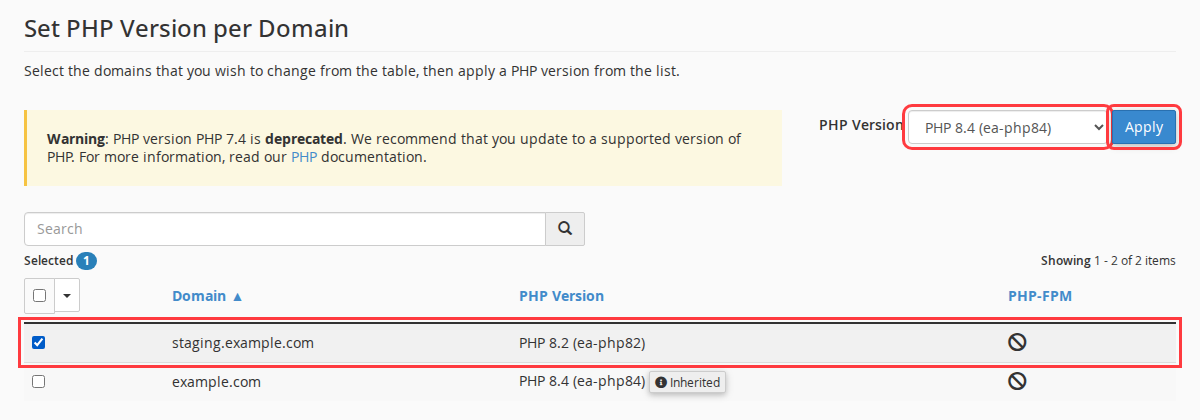
The domain list then shows the new version for that domain only. It no longer has the Inherited label, because it now has its own version. The main domain is unchanged.
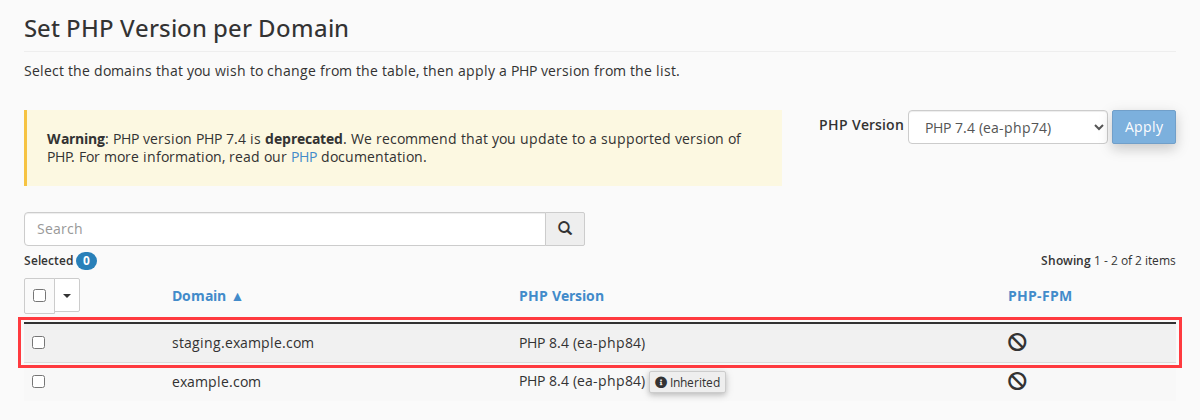
The change takes effect within a few seconds, and there’s nothing to restart. In our tests the new version was live in under 10 seconds.
To change several domains to the same version, select each of their checkboxes before you click Apply. To put a domain back on the server default, choose inherit from the same drop-down.
MultiPHP Manager writes the setting into that domain’s .htaccess file, between the lines # php -- BEGIN cPanel-generated handler, do not edit and # php -- END cPanel-generated handler, do not edit. Leave that block alone.
Watch out for this one: if you replace .htaccess (from a backup, a migration plugin or another site) and the new file doesn’t have that block, the site falls back to the server default PHP version. MultiPHP Manager keeps showing the version you chose, so it looks fine there. Check the version from inside WordPress (below). If the two don’t match, select the domain in MultiPHP Manager and click Apply with the same version again. That writes the block back.
Test a new PHP version on staging first
This is the safe order for a PHP upgrade:
- Switch staging or dev only. Set
staging.example.com(or your dev copy) to the new version. Leave production alone. - Clear the old log. Empty the staging site’s
error_logso you only see new entries. - Click through the site. Load the home page, a few key templates, forms, checkout if there is one, and wp-admin, including page builder editing screens.
- Read
error_log. Look forPHP Fatal errorentries first, thenPHP Deprecatedentries, and note which plugins they come from. - Update or replace what breaks. Fatal errors must be fixed before production moves. Deprecated notices can wait for plugin updates, but write them down.
- Switch production. Change
example.comto the same version, then repeat the quick click-through.
If production misbehaves after the switch, set it back to the previous version in MultiPHP Manager. That takes effect immediately, and you can work out the problem on staging.
If you don’t have a staging copy, see How to create Development Sites.
Check which version a site is actually running
Confirm the change from inside WordPress:
- In wp-admin, go to Tools > Site Health.
- Open the Info tab.
- Expand Server and read PHP version.
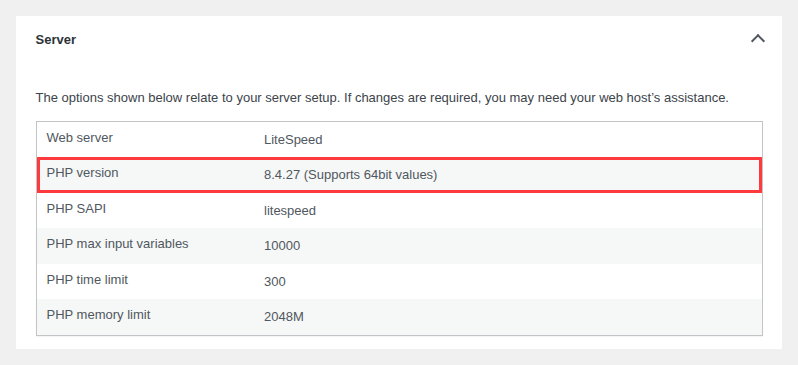
This is the version the site is really running. Trust it over MultiPHP Manager if the two disagree.
What changes between PHP versions
Most well-maintained plugins handle any current PHP 8.x version. Older plugins tend to trip on these changes:
| Moving to | What older code runs into |
|---|---|
| 8.0 (from 7.4) | Many warnings became fatal errors, and functions are stricter about argument types. This is the upgrade most likely to break an old site. |
| 8.1 | Passing null to built-in functions that expect a string or number is deprecated. |
| 8.2 | Creating properties that a class didn’t declare (“dynamic properties”) is deprecated. |
| 8.4 | Parameters that default to null without a ? type are deprecated. |
PHP 8.1 and older no longer receive updates from the PHP project. The PHP project has announced that PHP 8.2 reaches end of life on December 31st, 2026. For current dates, see PHP supported versions.
Per-domain PHP settings
PHP settings such as memory_limit and upload_max_filesize can also be set per domain, in Software > MultiPHP INI Editor. Our defaults are generous (for example, memory_limit is 2048 MB), so most sites never need to change them.
When to contact us
Open a ticket if:
- The version you need isn’t in the drop-down.
- A domain shows a 500 error or downloads PHP files right after a version change.
- Site Health still reports a different version from MultiPHP Manager after you’ve applied the version again.
Tell us the domain, the version you set, and when you changed it. See Need Help? for how to reach us.
FAQ
Do I need to do anything when a PHP security advisory comes out?
No. We patch PHP on our servers. You don’t need to change versions or install anything in response to a PHP security advisory. If you want to check on a specific advisory, ask us.
Why does my site still show a PHP version listed as vulnerable?
A security fix can be applied to the PHP build on the server without changing the version number you see in Site Health or MultiPHP Manager. A scanner that only compares version numbers can then flag a patched server as vulnerable. If a scanner flags your site, ask us and we’ll confirm whether the fix is in place.
Will changing PHP on a subdomain affect the main site?
No. Each domain and subdomain you set explicitly in MultiPHP Manager keeps its own version.
Which PHP version should I use?
Use the newest version your plugins and theme support. PHP 8.4 is our current server default and a safe target for most actively maintained sites. Test on staging before moving production.